
Need Additional Help?
Need help with Gymini? There are 2 ways to get support:
Book a Call: You can also schedule a 30min call to discuss your task or issue in more detail

Raise a Task
Schedule a Call
Cancellation Request Submission
Gymini Support
Browse through our help articles below
Documents & Contracts: Collect card details
What’s New?
You can now collect and save card details within Documents & Contracts using the new “Card Details” field.
Signers can securely add their card while filling the document, and the card gets saved for future payments.
How to Use?
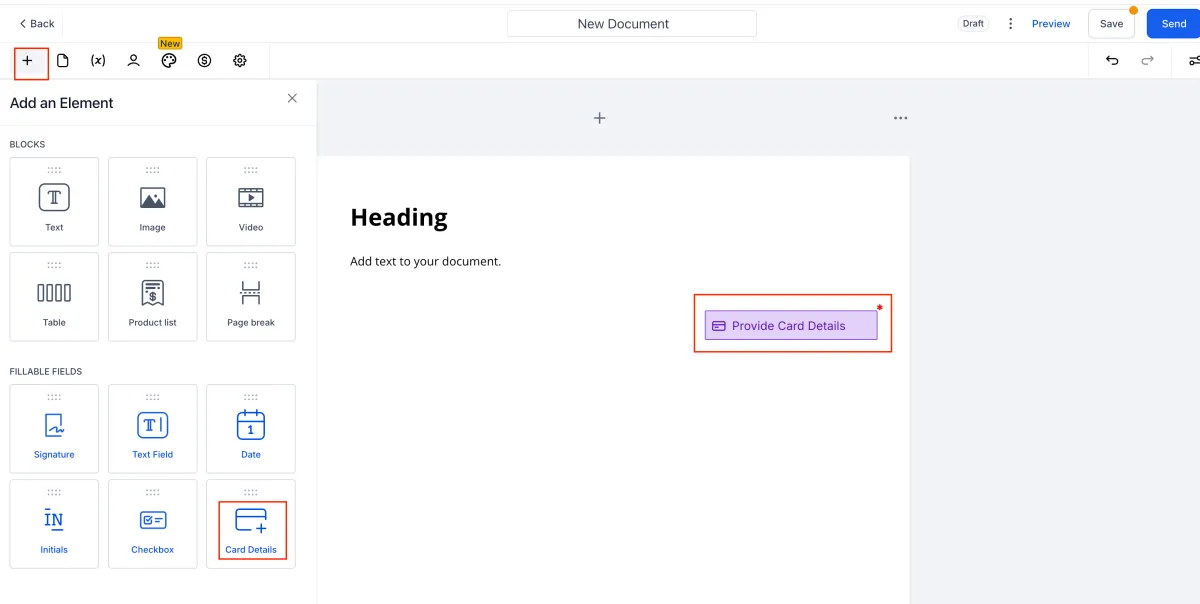
Open the document builder and click on “+ Add Element”
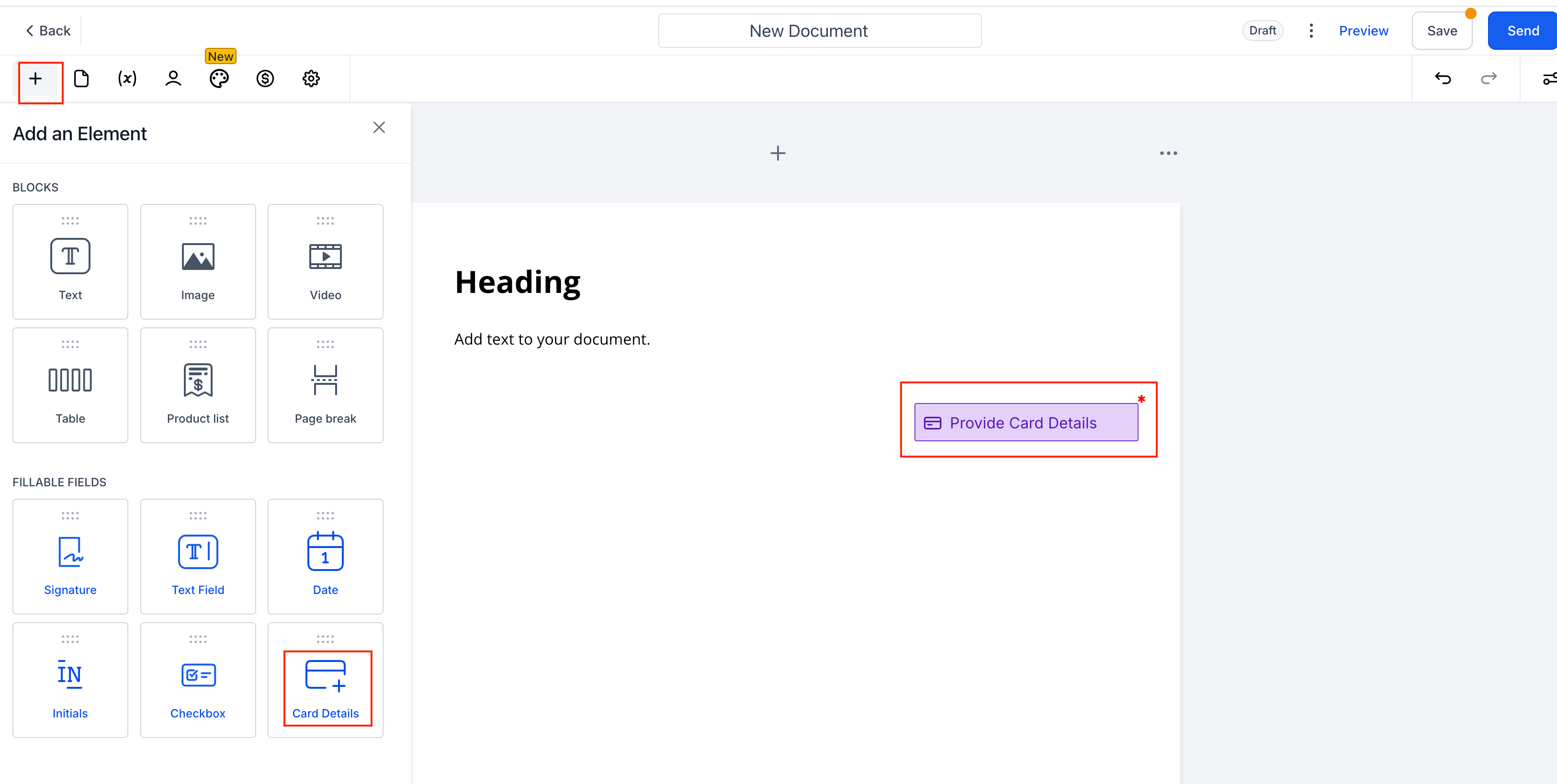
Drag and drop the “Card Details” field into your document
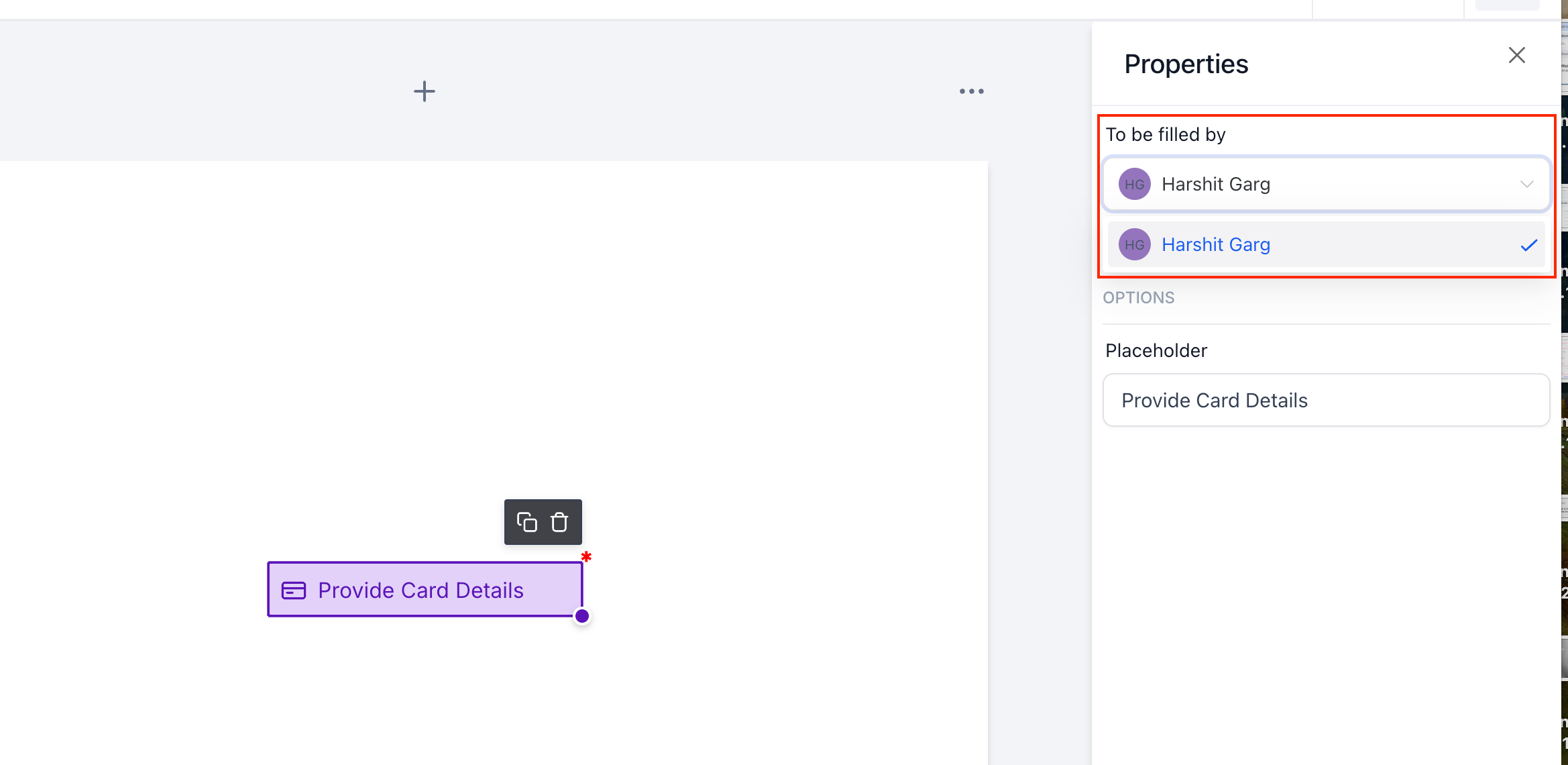
Assign the field to a signer and mark it as required if needed
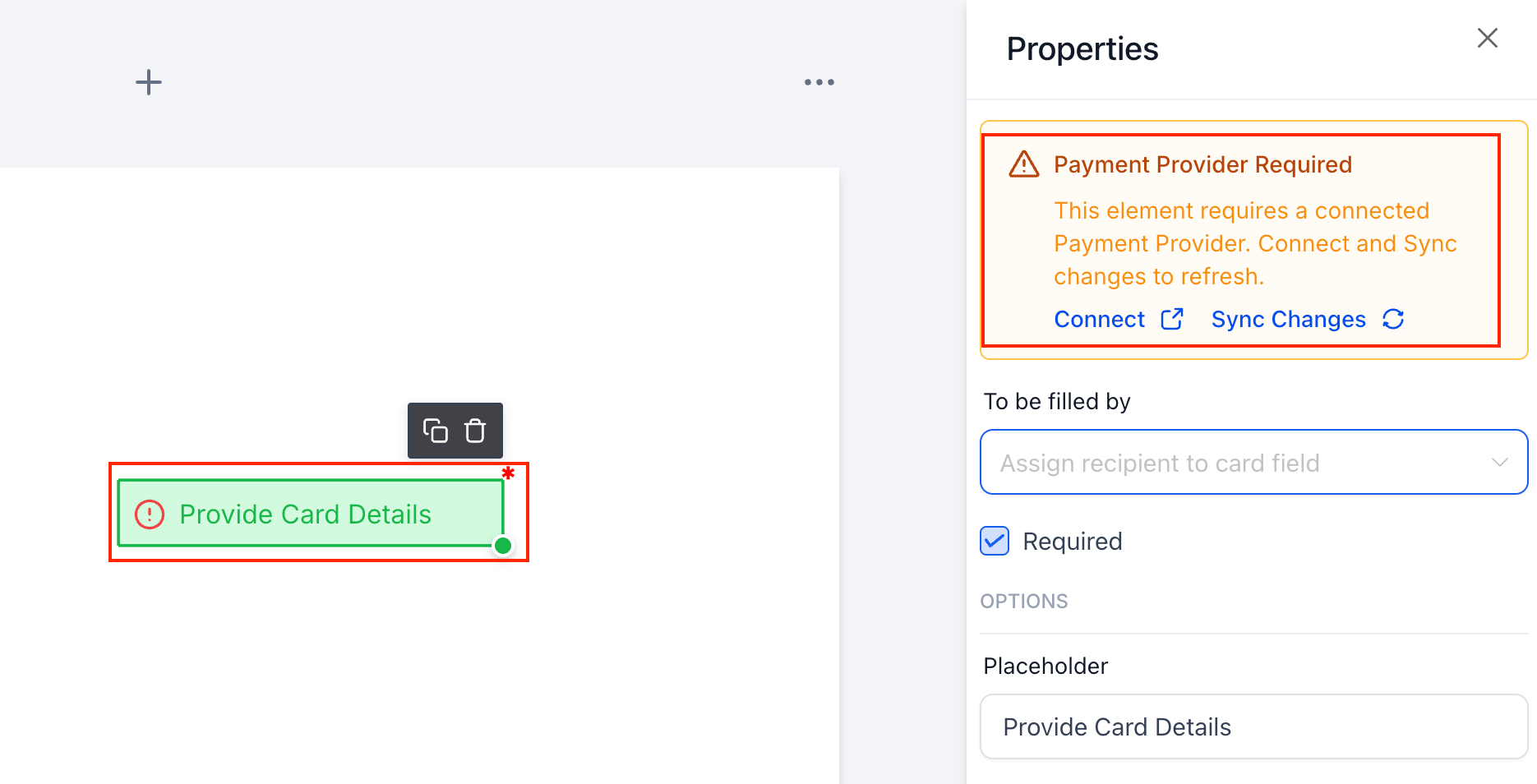
Ensure a payment provider is connected and live/test mode is enabled
Send the document to the signer
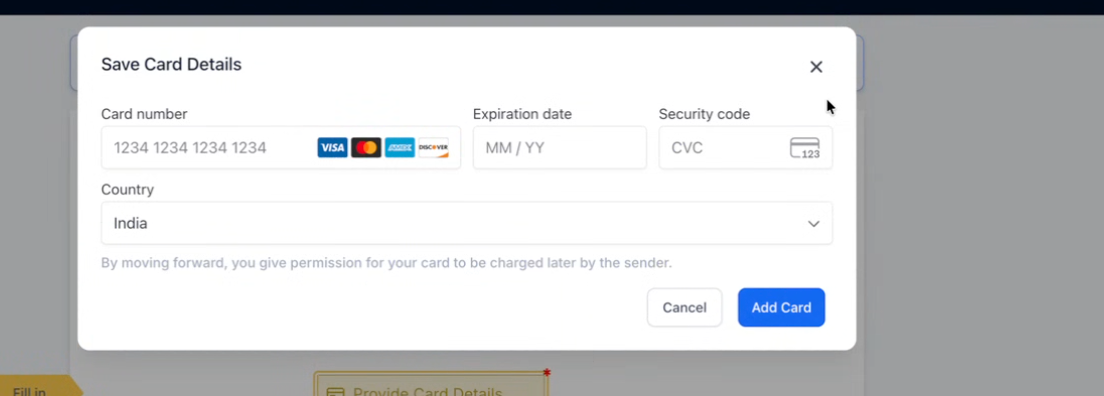
The signer clicks “Start filling out” and enters card details
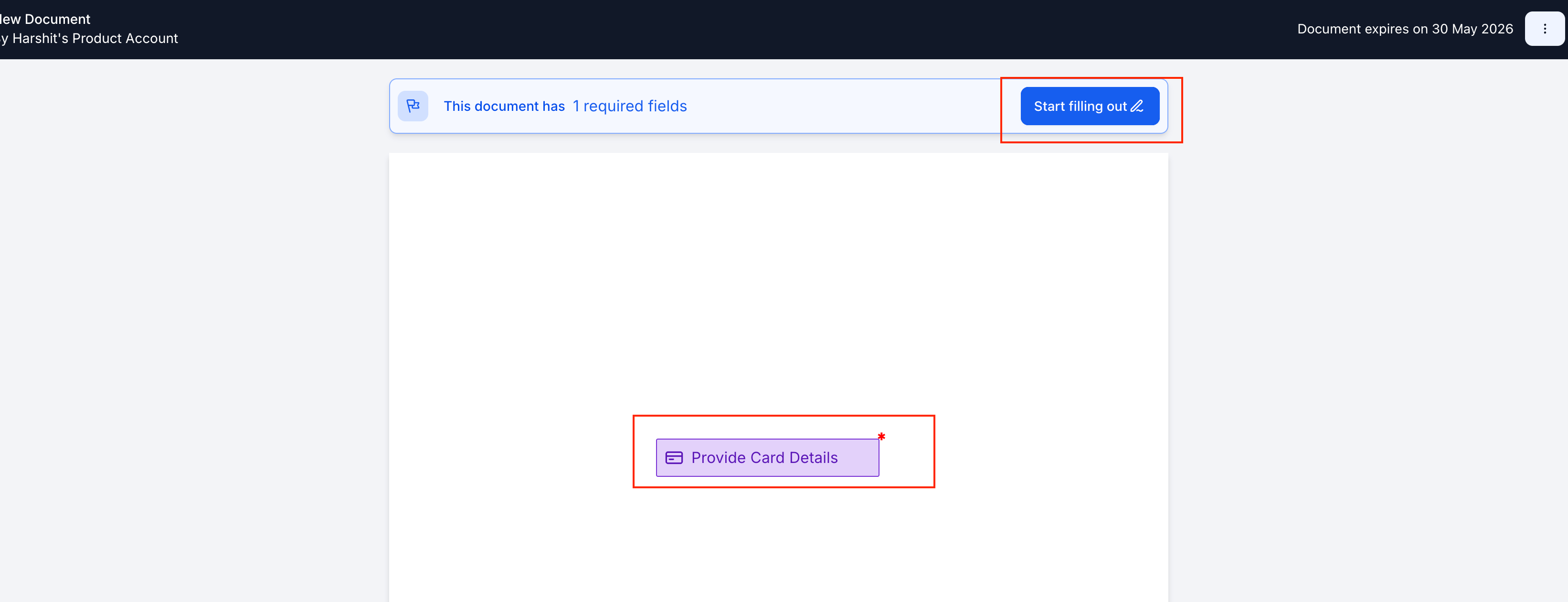
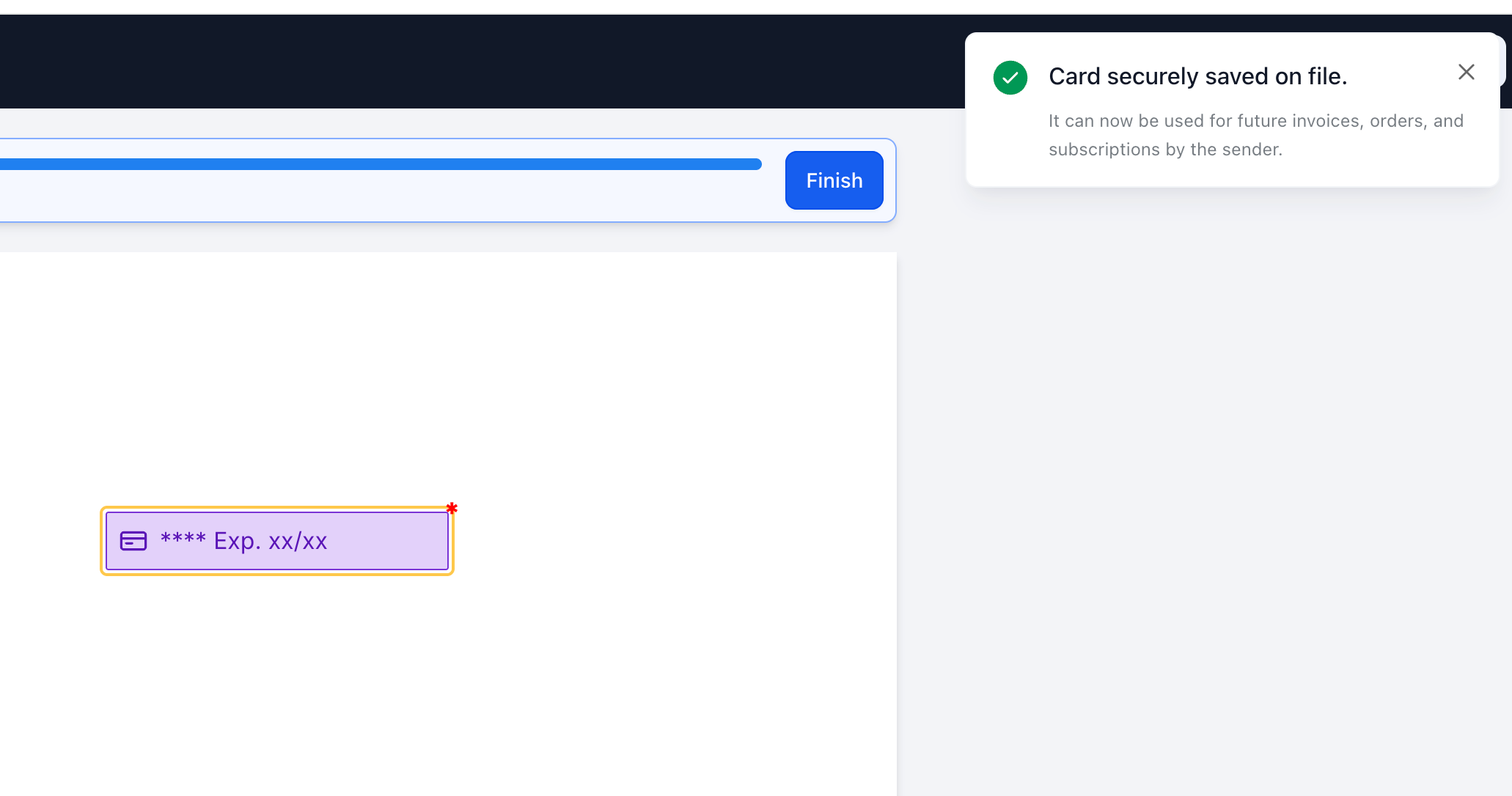
Card gets securely saved as soon as user selects add card and can be used later for payments
Note
Supported providers are - Stripe, NMI, Square, Authorize-net, Adyen;
Unsupported (Upcoming) - Razorpay , PayPal, Custom payment providers
-
Why We Built This?
To capture payment details upfront during document signing
To eliminate follow-ups and reduce drop-offs in payment collection
To lay the foundation for auto-pay, subscriptions, and seamless future charges
