
Order Upsell in Forms
What’s New
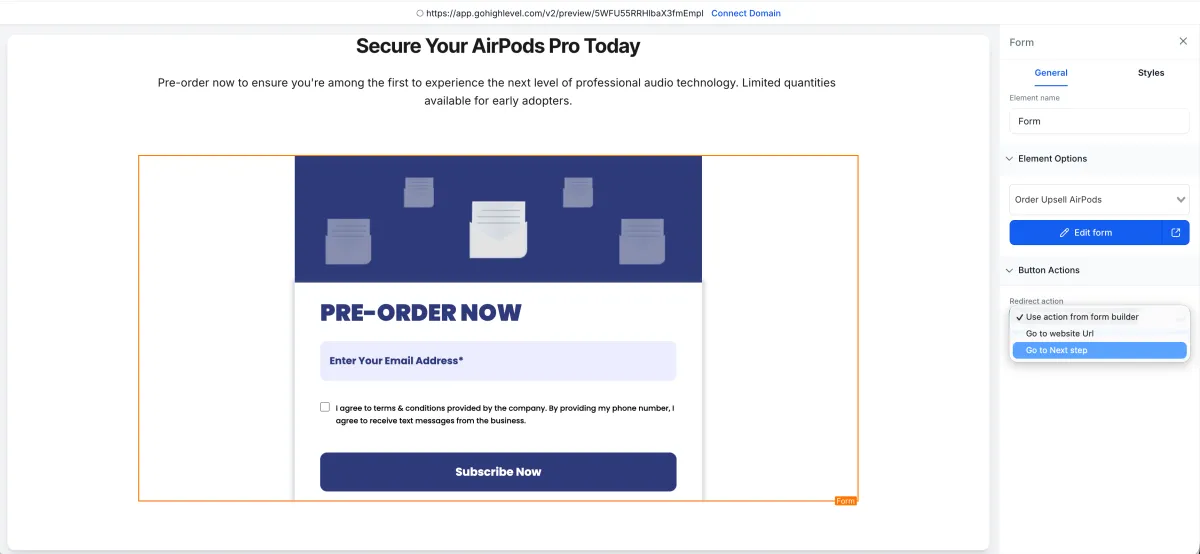
You can now add an upsell product directly in your funnel forms, no extra page or re-entry of customer details needed. This helps increase your average order value while keeping the checkout smooth and quick.
What You Can Do
Add an extra product offer in the next funnel step (not in the same step).
Let customers accept the offer with just one click.
Use upsells with both Normal Sell and Bump Products (Bump can only be added with a normal product).
Works seamlessly with Forms added as native elements in funnels (Surveys not yet supported).els.
How It Works
1. Build the Form
Open the Form Builder.
Drag and drop a Sell Product element.
Configure the product details (price, product ID, etc.).
Save the form.

2. Funnel Integration
Open or create a Funnel.
Go to the desired Funnel Step.
Add the saved Form as a Native Form element (not embedded).


3. Add the Upsell Button
In the next Funnel Step, drag a Button element.
Set the button action to "Upsell Product".
Select the Upsell Product you want to offer.


4. Order Summary
Ensure the Funnel contains an Order Summary element to reflect:
Initial product from the form
Additional Upsell product (if accepted)

Why It Matters
This update helps you sell more without adding friction to the checkout.
Customers can complete their upsell purchase in just one click. No new page, no repeated form filling. It’s a simple way to boost revenue and improve the buying experience.
